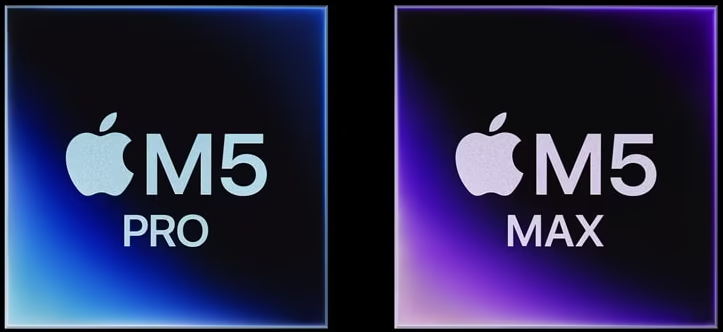
You just unboxed the sleek new 14-inch or 16-inch MacBook Pro with the groundbreaking M5 Pro or M5 Max chip — and honestly, it feels like the future arrived a few days early. Announced on March 3, 2026, and shipping starting March 11, these machines deliver up to 4x faster AI performance than the previous generation, Wi-Fi 7 speeds, Thunderbolt 5 ports, and up to 24 hours of battery life, all running the stunning new macOS Tahoe.
But raw power means nothing if you don’t set up MacBook Pro M5 Pro 2026 right. Whether you’re a creative pro editing 8K video with on-device AI, a developer training local LLMs, or a power user juggling 50 tabs and multiple external displays, this guide walks you through every step to turn your new MacBook into a productivity beast while keeping it secure and efficient.
We’re covering everything from day-one setup to advanced tweaks that leverage the M5’s Neural Accelerators and Apple Intelligence. Let’s dive in , your optimized MacBook awaits.
Unboxing and Initial Hardware Setup for 2026 Models
The new MacBook Pro feels premium the second you lift the lid. The space black or silver aluminum unibody is thinner yet tougher, with the iconic Liquid Retina XDR display (now with an optional nano-texture glass that kills reflections without sacrificing sharpness).
Step-by-step unboxing checklist:
- Charge to at least 50% using the included 140W USB-C charger (or higher for 16-inch M5 Max configs).
- Connect to power and press the Touch ID button, it boots instantly thanks to the always-on efficiency of the M5 Fusion Architecture.
- During initial setup, enable Wi-Fi 7 right away (the new N1 chip makes this the fastest wireless Mac ever).
- Choose your storage wisely: base models now start at 1TB (M5 Pro) or 2TB (M5 Max) , no more skimping!
Pro tip: If you ordered the nano-texture display option, wipe it only with the included microfiber cloth. The anti-reflective coating is brilliant in bright offices but shows fingerprints faster than standard glass , a small trade-off for pro-level glare reduction.
Don’t skip the migration assistant if you’re coming from an older Intel or M-series Mac. It transfers everything in under an hour over Wi-Fi or Thunderbolt.
Installing macOS Tahoe and First-Run Configuration
Your new MacBook ships with macOS Tahoe (version 26) pre-installed, Apple’s biggest visual redesign since Big Sur. Expect a more translucent menu bar, smarter Spotlight with clipboard history, and deep Apple Intelligence integration from minute one.
After migration:
- Go to System Settings > General > Software Update and grab any day-one patches (Apple pushed 26.3.1 with enhanced Apple Music AI playlists and a brand-new Phone app).
- Enable Automatic Updates for both macOS and apps, the M5’s efficiency means updates install in the background without killing battery.
- Turn on FileVault during setup (it’s now faster than ever thanks to hardware-accelerated encryption).
Trend alert for 2026: macOS Tahoe’s new automations run entirely on-device. You can now create shortcuts that trigger when you plug in an external monitor or when battery hits 20% — no cloud required.
Activating Apple Intelligence: Your On-Device AI Powerhouse
This is where the M5 Pro/Max shines. With Neural Accelerators in every GPU core and up to 8x faster AI performance versus M1 Macs, Apple Intelligence feels truly magical.
Quick activation:
- Open System Settings > Apple Intelligence & Siri.
- Complete the one-time on-device download (about 2–3 GB).
- Enable Writing Tools, Image Playground, and Live Translation.
Practical examples you’ll use daily:
- Summarize 50-page PDFs in Safari with one click.
- Generate images directly in Messages or Notes.
- Get real-time translation during FaceTime calls (works even offline).
Pros of the M5’s on-device AI: Zero latency, full privacy, and it works offline.
Cons: Some advanced models (like complex video generation) still benefit from cloud fallback, but Apple keeps 95% of processing local.
If you want to supercharge these features with third-party tools, check out our in-depth roundup of the Top AI Tools 2025 , many now integrate seamlessly with Apple Intelligence for even more powerful Mac workflows.
Performance Optimization: Squeeze Every Drop from M5 Pro & Max
The M5 series is fast out of the box, but these tweaks make it ridiculous.
Battery & thermal management tips:
- In Battery Settings, set Low Power Mode to activate at 20% (new in Tahoe).
- Use Activity Monitor > CPU/GPU tabs to close rogue apps, the M5’s all-big-core design in Pro/Max chips handles bursts better than ever.
- Enable Optimized Battery Charging and keep it plugged in overnight when possible.
Storage & memory hacks:
- With base storage now doubled, use the new Storage Optimizer in System Settings to auto-purge large downloads.
- For creators: External SSDs via Thunderbolt 5 hit 14.5 GB/s, perfect for 8K ProRes timelines.
Real-world benchmark tip: Run Final Cut Pro or Logic Pro right after setup. The M5 Max renders 8K timelines up to 50% faster than M4 Max , but only if you close Chrome tabs first!
Security Best Practices for Your 2026 MacBook
With AI everywhere, security matters more than ever. The M5’s Secure Enclave got upgrades, but you still need smart habits.
Essential 2026 security checklist:
- Enable Stolen Device Protection (now even smarter with location-based delays).
- Turn on Advanced Data Protection for iCloud.
- Use the new Lockdown Mode if you’re in high-risk fields (journalism, activism).
- Set up Face ID via Continuity Camera with your iPhone 17 Pro for instant unlock.
Pro tip: Regularly review Privacy & Security settings — macOS Tahoe now shows exactly which apps accessed your camera or microphone in the last 24 hours.
For deeper protection strategies that work across all your devices, read our comprehensive Cybersecurity Best Practices guide, it includes Mac-specific firewall rules and zero-trust setups that pair perfectly with Apple’s hardware.
Productivity Boosts: Shortcuts, Continuity & External Displays
macOS Tahoe supercharged the Shortcuts app with direct Apple Intelligence actions. Create an automation that:
- Extracts key data from a PDF and drops it into Numbers.
- Generates meeting summaries from Zoom transcripts.
- Switches your workspace to “Focus Mode” when you open Final Cut.
Continuity tricks for 2026:
- Universal Control now supports up to three external 8K displays with the M5 Pro.
- Handoff works instantly between your iPhone and MacBook Neo/Air/Pro.
- Use your iPhone as a webcam with Center Stage on the built-in 12MP camera.
Dock & Stage Manager pro move: Customize Stage Manager groups per app , one for creative work, one for research. The M5 handles 20+ apps without breaking a sweat.
Advanced Customization and Troubleshooting 2026 Issues
Want to go deeper?
- Terminal commands for power users: defaults write com.apple.finder DisableAllAnimations -bool true for snappier animations.
- Nano-texture display calibration: Use the built-in True Tone + manual color profile for perfect color accuracy.
- Common fixes: If Wi-Fi 7 drops (rare), toggle the N1 chip in Network settings. Overheating during AI tasks? The new vapor chamber cooling in 16-inch models handles it, but elevate the laptop slightly.
Maintenance routine (do this monthly):
- Run Storage Management > “Optimize”.
- Update all apps via App Store.
- Restart weekly to clear RAM caches.
Keeping Your MacBook Running Like New for Years
The M5 Pro and M5 Max are built to last, Apple claims the unified memory architecture and efficiency cores will keep these machines relevant well into 2030. Stick to genuine Apple chargers, use a good sleeve, and enable automatic backups to iCloud.
Your new MacBook isn’t just a laptop — it’s a portable AI studio, creative powerhouse, and secure workstation all in one. For the official details straight from Apple on the new M5 Pro and M5 Max MacBook Pro lineup, check out their announcement on the breakthrough performance and AI capabilities.
What do you think? Did you just get the new M5 MacBook Pro, Air, or even the budget MacBook Neo? Drop your biggest setup question or favorite optimization tip in the comments below, I read every single one and reply to as many as possible.
Ready to go even further? Hit that share button and let’s get your MacBook crushing 2026 tasks together! 🚀
